
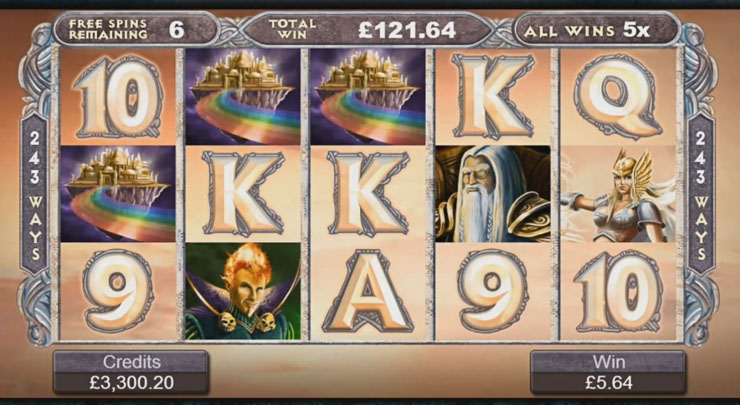
This manual is for Canadian gamers who encounter technical issues while playing Receive Free Spins Slot Thunderstruck 2. We understand—nothing ruins the mood of exploring Asgard like a frozen screen or silent reels. Our objective is to walk you through the common fixes, step by step. We cover everything from games that won’t load to weird audio glitches. Think of this your go-to guide, a calm starting point to start before you might have to bring in the experts. Let’s get you back to chasing those Norse god bonuses without the headache.
Frequent Technical Glitches and Their Immediate Fixes
A lot of the trouble users encounter with online slots, Thunderstruck 2 included, can be fixed by some simple steps. Typical complaints are the game refusing to load, stalling during a bonus feature, or showing glitchy graphics. Frequently, the root of the problem isn’t the game’s code but a simple issue with your device or internet. Before you dive into complex troubleshooting, attempt this three-step reset: restart your browser, clear the cache, and restart your computer or phone. This basic routine eliminates a large number of temporary issues by removing corrupted temporary files. Consider it as turning it off and on again, but applied to your browser. It’s always your go-to action when things go sideways mid-spin.
Network problems are another frequent factor. Thunderstruck 2 is loaded with rich graphics, so it requires a stable internet connection. Indicators of an unstable connection are the game lagging, symbols appearing with delay, or a lag after clicking the spin button. First, check your Wi-Fi signal. If you’re able, plug your computer directly into the router with an Ethernet cable for optimal reliability. Also, see if someone else in your house is streaming a movie or downloading a huge file , as that can consume all the bandwidth. If you’re on your phone in Canada, try switching between your mobile data and Wi-Fi to see if the lag disappears. These basic steps can resolve the problem right away, no computer science knowledge necessary.
Optimizing Your Browser for Thunderstruck 2 Gameplay
Your web browser is the motor for Thunderstruck 2, and how you set it up makes a difference. Stick with updated editions of the main contenders: Google Chrome, Mozilla Firefox, Microsoft Edge, or Safari. Older or obscure browsers might not fully support the HTML5 technology that runs modern games, causing errors and blank screens. First, make sure your browser is updated. You can usually find an update check under the “Help” or “About” menu. Next, confirm that JavaScript is enabled and that you’re accepting cookies from the casino site. These settings are crucial for the game to load and remember your place. If they’re switched off, the game might not start at all.
Browser extensions are a common source of trouble. Ad blockers, privacy tools, and other add-ons can accidentally block elements of the game. This might stop a bonus feature from starting or make the graphics look corrupted. A good way to test this is to open Thunderstruck 2 in your browser’s Incognito or Private browsing window. These modes usually deactivate all extensions. If the game runs smoothly there, you know an extension is causing the conflict. Back in your normal browser, you can turn extensions back on one at a time to find the cause. Spending a few minutes on these settings creates a clean, fast setup perfect for graphics-heavy slot games.
Device Fixes: Gaming on Phones and Tablets
Playing Thunderstruck 2 on a phone or tablet in Canada is very handy, but it presents its own issues. Players commonly note the app crashing, touch controls failing, or the screen failing to rotate as it should. In many cases, the device’s operating system is just behind. Keeping your iOS or Android software current is critical. Those updates contain fixes that directly influence how games perform in your browser or in an app. The same applies to your browser app itself—whether it’s Chrome, Safari, or something else—make sure it’s updated through your device’s app store.
If everything is updated and you’re still having problems, look at your device’s storage and memory. Games and their cache can take up space over months of play. Look at how much free storage you have and clear out some old photos or unused apps. Furthermore, close all other apps running in the background before you open Thunderstruck 2. This makes available RAM, giving the game more room to breathe. For a stubborn issue, try uninstalling and reinstalling the casino app if you use one. If you use a browser, erase the site data for the specific casino website. This wipes the slate clean and often gets rid of a piece of corrupted local data that was causing the trouble on your mobile device.
Audio and Visual Glitches: Identification and Solutions
Audio and visual problems can really ruin the mood of Thunderstruck 2. The crackling thunder and detailed god animations are a big part of the fun. When you run into muted sound, distorted audio, or flickering graphics, the cause is usually in your own device’s settings. First, look at the sound controls inside the game itself. It’s incredibly easy to hit the mute button by accident. Then, check the overall volume on your computer or phone, making sure it’s not on silent mode. Desktop players should check the cables for their speakers or headphones; a loose connection can cause sound to cut in and out.
Graphical issues like missing symbols, screen tearing, or blurry visuals often point to your graphics hardware. On a computer, outdated graphics drivers are a common cause. Go to the website of your graphics card maker—NVIDIA, AMD, or Intel—and download the latest driver for your model. For mobile devices, a simple restart of the phone or tablet can reset the graphics processor. If the visual glitches keep happening, determine if the game or casino platform has a setting to lower the graphics quality. Turning it down a notch can lessen the strain on older hardware. Another thing to try is disabling hardware acceleration in your browser’s advanced settings. This feature is meant to boost performance, but it sometimes conflicts with certain graphics setups and makes things worse.
Access and Login Issues for Canadian Players
Signing into your casino account to play Thunderstruck 2 ought to be simple, but sometimes login doesn’t work or location blocks pop up. If you are unable to log in, the most likely reason is a error in your username or password. Use the site’s “Forgot Password” link to reset it, selecting a strong new password. If that doesn’t work, your account might be temporarily locked after several wrong attempts—a standard security measure. In that case, you’ll need to contact the casino’s support team to unlock it. Always confirm that you’re on the official website for your Canadian casino. Imposter sites are present, and they’re created to steal your login details.
Canadian players also should think about provincial rules. Casinos use geo-location tech to confirm you’re playing from a permitted province like Ontario, British Columbia, or Quebec, based on their license. If you’re being blocked, run through this checklist:
- Make sure location services are turned on for your browser.
- If you’re using a VPN or proxy service, turn it off. These tools hide your real location and will lead to a block.
- For home internet, your provider’s IP address must correctly show your province. Sometimes this is incorrectly labeled, which might require a call to your ISP or the casino’s support.
- Check you meet the legal gambling age in your province. Failed age checks will stop access.
Sticking to these points will resolve most of the access issues players face from coast to coast.
When to Contact Official Support Channels
Once you’ve attempted all the solutions we’ve proposed, some problems will need a professional touch. You should contact the casino’s customer support or the official game provider if you’re dealing with a problem that completely stops you from playing. This includes ongoing deposit or withdrawal problems, what seems like a fault in the game’s mechanics, or any worry about your account’s security, like a sign-in from an unknown device. These are major issues that the support team is trained to handle. They have access to your account logs and game history, which lets them to investigate properly.
Being organized before you contact them makes everything faster. Collect the relevant details: your username, the type of device and browser you were using, a clear summary of what went wrong, the approximate time it happened, and any error codes shown on screen. A screenshot or screen recording of the problem is extremely useful proof. Giving support agents this organized information enables them to skip the basic questions and start working on a solution right away. Keep in mind, their job is to support you and keep you as a player. A calm, clear explanation with the facts at hand is your best bet for getting a quick fix.
Proactive Measures for a Seamless Gaming Experience
The best tech support is the kind you avoid altogether. With a few proactive habits, you can cut down on most problems with Thunderstruck 2. Begin with good digital hygiene. Configure your device’s operating system, your main browser, and key drivers (like graphics) to update automatically. Employ a reliable, high-speed internet connection. For the absolute best stability, especially during Thunderstruck 2’s bonus rounds, connect your computer directly to your router with an Ethernet cable. This eliminates Wi-Fi interference entirely.
Protecting your system from malware is just as important. Conduct regular scans with a trusted antivirus program to catch any software that might be causing lag or interfering with your browser. You might also consider using a separate browser profile just for gaming. This maintains your gaming sessions isolated from the dozens of extensions and cached data from your daily browsing. Finally, take some time to play the game in demo mode if it’s offered. Knowing how the features and bonuses are supposed to work makes it much easier to spot when something is actually broken, versus when the game is just behaving as the designers intended. A little upfront effort keeps your focus on the game, not the glitches.